Trusted Profile Analyzer
1. Trusted Profile Analyzer
The Trusted Profile Analyzer adds management capabilities for Software Bills of Materials (SBOMs) to OpenShift.
1.1. What is an SBOM?
CISA.gov defines an SBOM as "a nested inventory, a list of ingredients that make up software components." ¹
Using SBOMs, you can have a clear vision of everything that goes into your application or what you may have received from vendors, such as Red Hat. This enables platform engineers to more easily enforce operational controls and compliance across hybrid multi-cloud environments.
U.S. Executive Order 14028 and the EU Cyber Resilience Act increasingly require SBOM transparency for software supply chains.
1.2. Using the Trusted Profile Analyzer UI
A Red Hat Trusted Profile Analyzer has been created for you to use. The proctor will make the URL available to you once you’ve completed the previous section.
When you are given the URL, log into the RHTPA UI using the username and password provided.
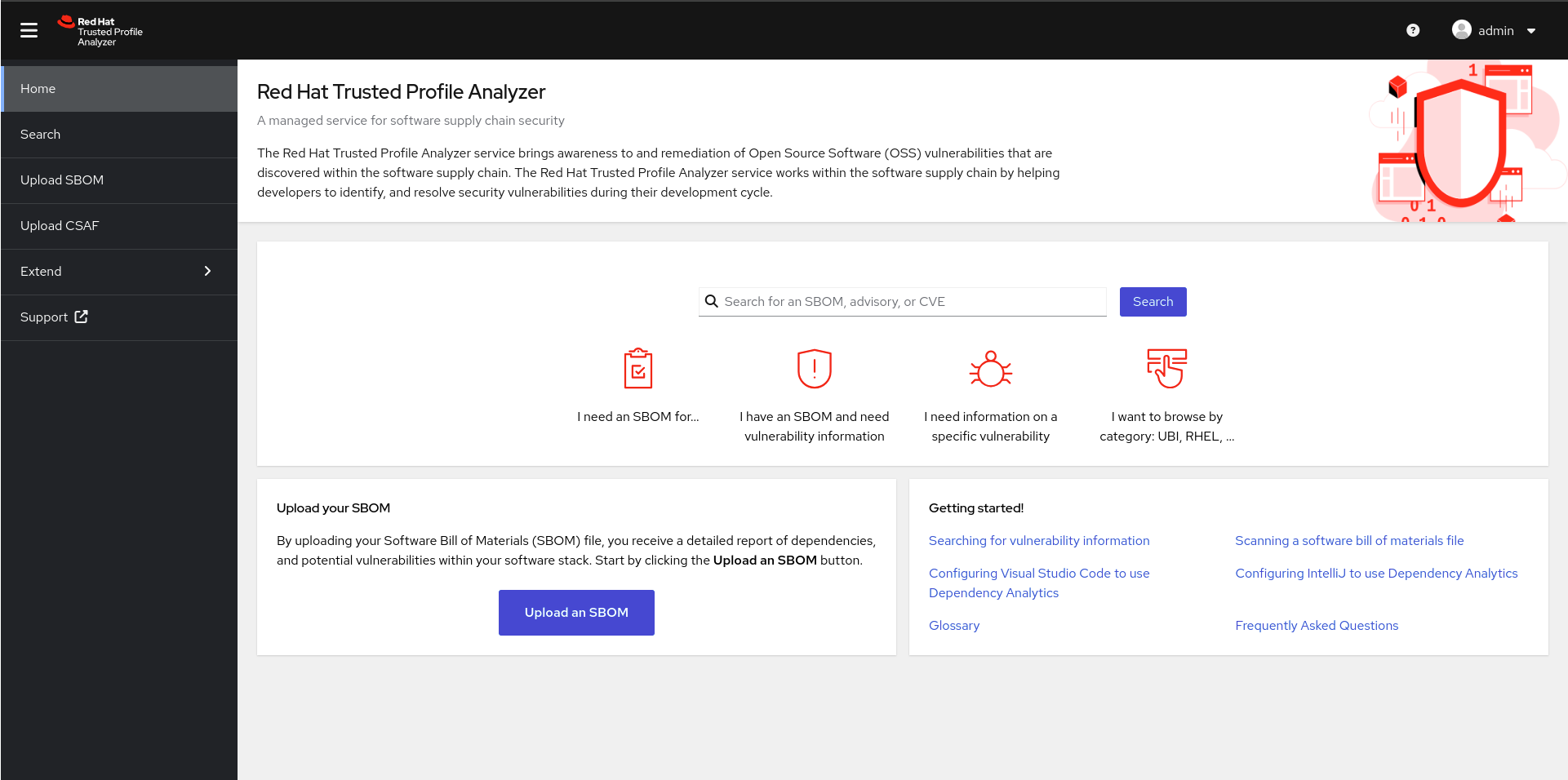
You can search for an SBOM, advisory, or CVE directly from the home page, or you can click on Search in the left menu for further options.
From the Search page, you can choose to browse SBOMs, Packages, CVEs, and Advisories from the Tabs, and further filter using the filter menu on the left.
Let’s take a look at some packages.
Click the Packages tab, then check the Red Hat box under supplier.
The list now shows packages that are supplied by Red Hat.
You may click on a package to get information like related vulnerabilities, if any exist, and related products.
1.2.1. Uploading an SBOM
An SBOM has been made available for you to download here.
Upload the SBOM.
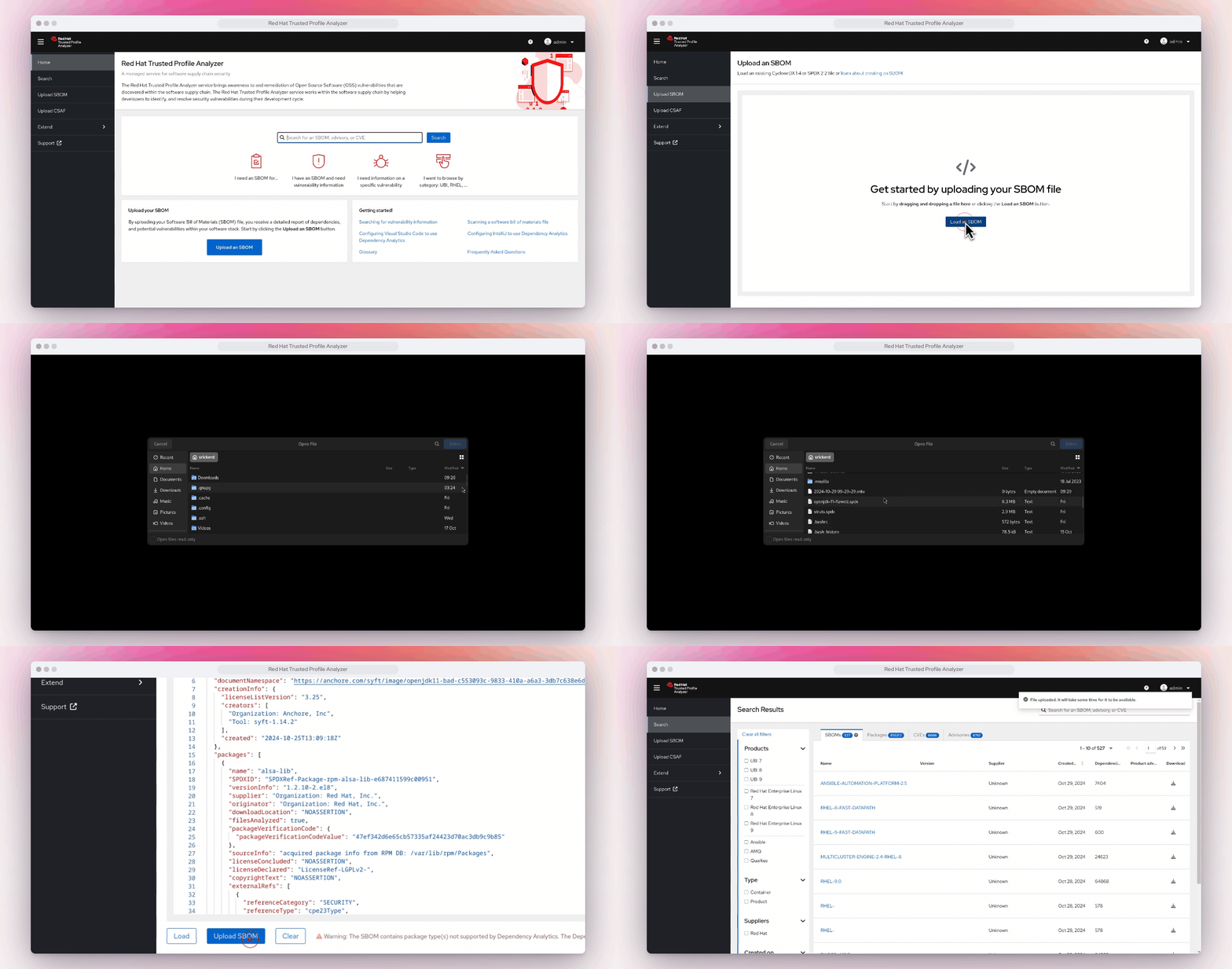
It will take a few minutes for the SBOM to be processed by TPA, so click in the Search bar and type "home". Once you see home-banking, click on it.
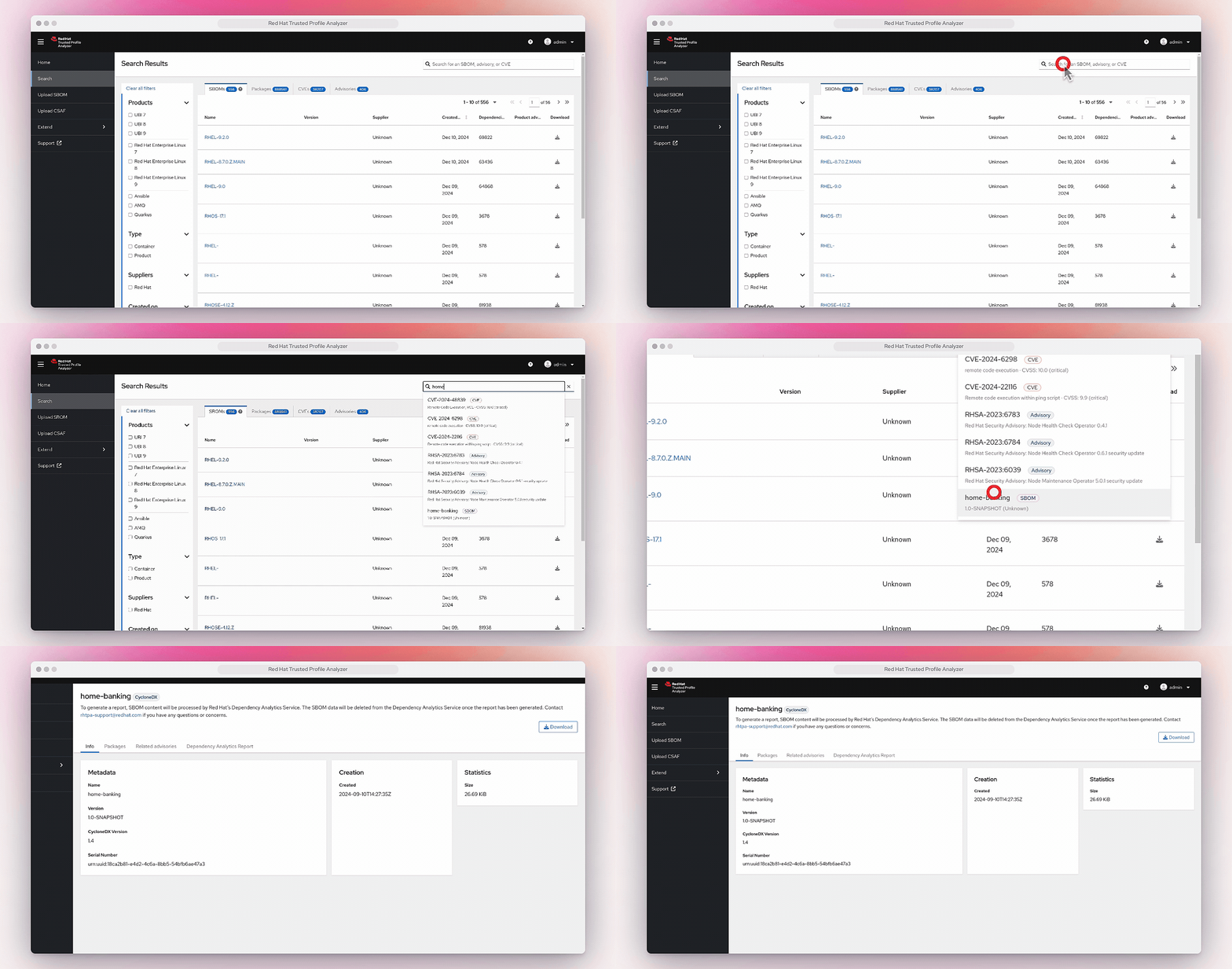
This will open the page for the home-banking SBOM you’ve uploaded.
The Info tab will give you standard information about the SBOM itself, including the version, the CycloneDX version, and the serial number.
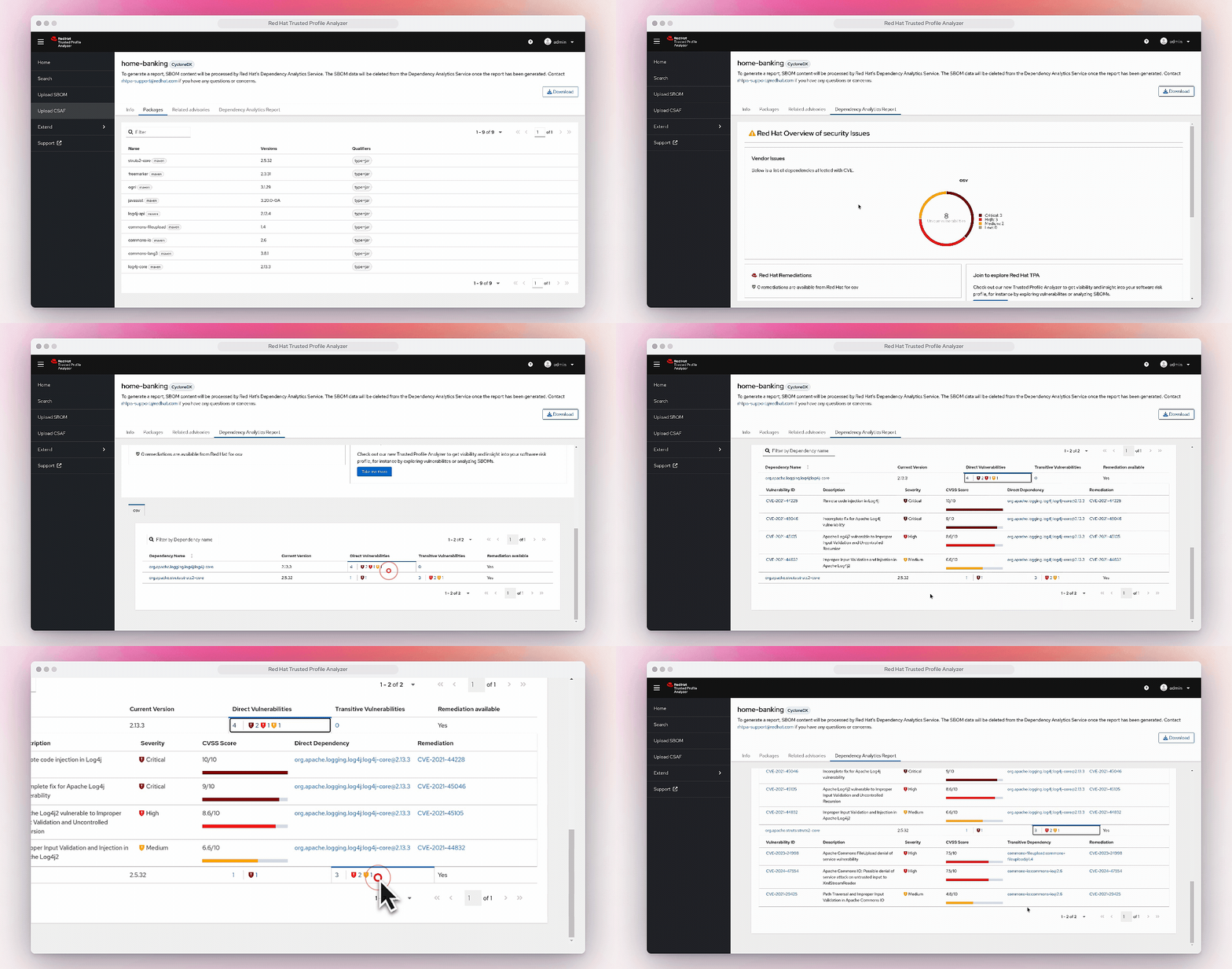
Click on the Packages tab.
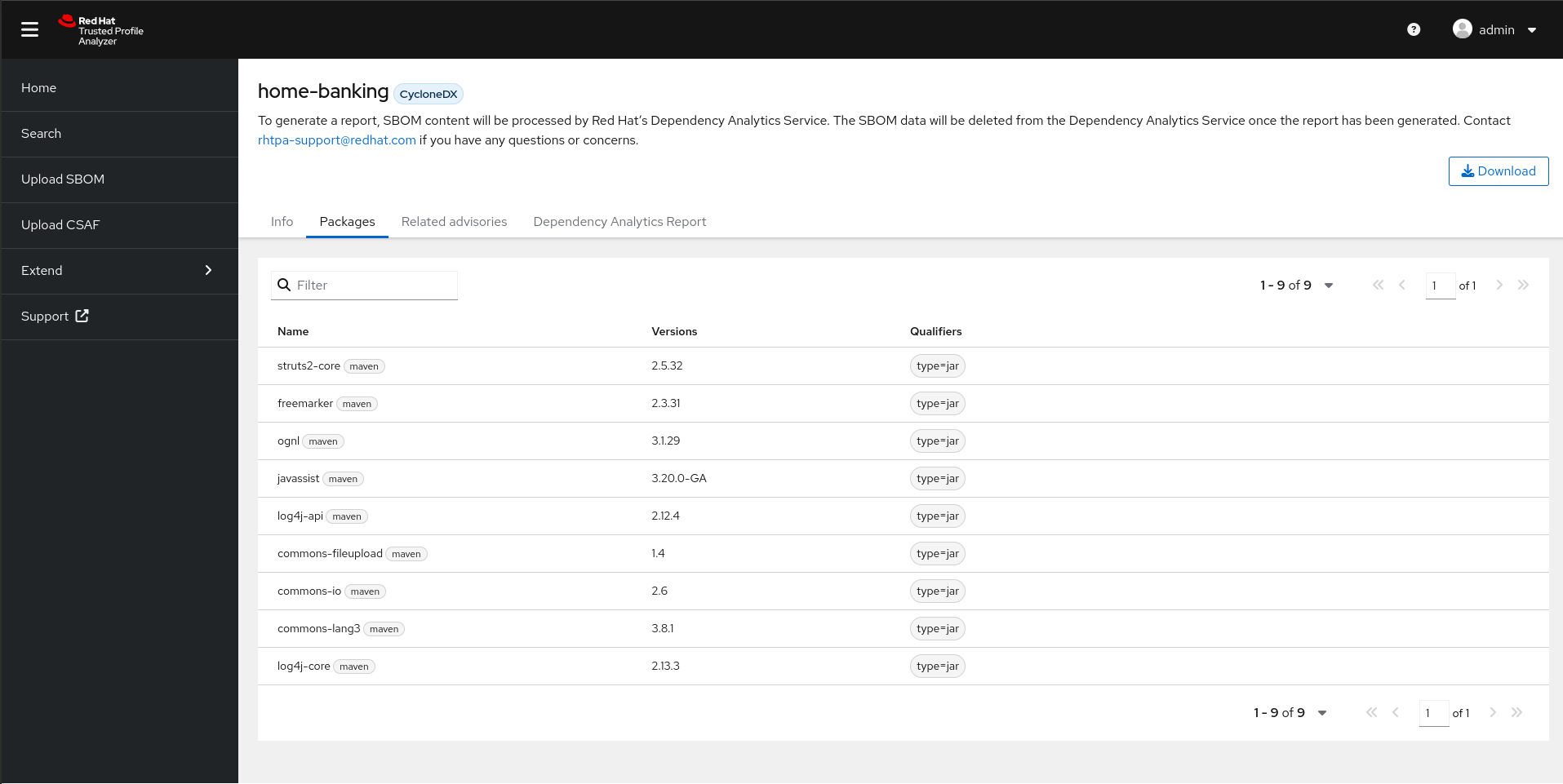
The Packages tab will list all the packages found in this SBOM.
Click on Dependency Analytics Report.
The Dependency Analytics Report tab will list the security issues found in this SBOM. As you can see, there are a number of violations found. 3 of them are Critical, 3 High, and 2 Medium.
Scroll down the page to find the osv tab.
Here you will find further information about the detected vulnerabilities. Clicking on the Direct Vulnerabilities to the right of the log4j entry will expand the entry to show more information about the vulnerabilities, including Remediation.
The same can be done with the Transitive Vulnerabilities next to the struts2-core entry.

2. Cleanup
Reset TSSC module content for the next user, then run the roadshow module cleanup script.
curl -fsSL https://raw.githubusercontent.com/redhat-tssc-tmm/security-roadshow/main/cleanup_tssc-module.sh | bash -s {quay_admin_username} {quay_admin_password}

cd ~/openshift-security-roadshow
bash setup/lab-cleanup.sh --module tssc-02