Policy Management
1. Module Goals
-
Create build, deploy, and runtime policies
-
Create policies from filters
-
Clone and edit policies based on the ACS defaults
2. RHACS Policy Management Basics
RHACS has built-in policies to detect activities linked to attacker goals, like gaining access, maintaining presence, moving laterally, and exfiltrating data. Continuous runtime monitoring watches all container activities and automatically responds with enforcement and notifications. However, RHACS aims to go beyond this by leveraging the ephemeral, immutable nature of containers to improve security.
We want to turn runtime incidents and vulnerabilities into opportunities for better security by restricting container actions. This is done by creating and implementing policies early in the CI/CD process.
In the next section, we’ll focus on identifying and enforcing a runtime policy in the cluster. For this example, we’ll prevent the Alpine Linux package manager from running on pods in our cluster. We’ll use the frontend container, which includes this package manager, and ensure it cannot update while in the cluster.
3. Introduction to Runtime Policy Creation and Enforcement
RHACS monitors container processes and collects data to help create policies that block unwanted behavior. It also helps establish baseline policies that users can adjust. Runtime policies can include criteria from build-time and deploy-time but also account for process executions during runtime. However, runtime policies based on audit logs can’t use build and deploy criteria, as these logs are Kubernetes-specific events.
The example below shows how security may block a package manager from downloading packages. This runtime enforcement is the first step in shifting security left. After enforcing runtime policies, the next step will be to prevent the package manager from being used in the container entirely.
| For the Runtime stage, RHACS stops all pods that match the conditions of the policy. It does not scale the deployment down to zero. |
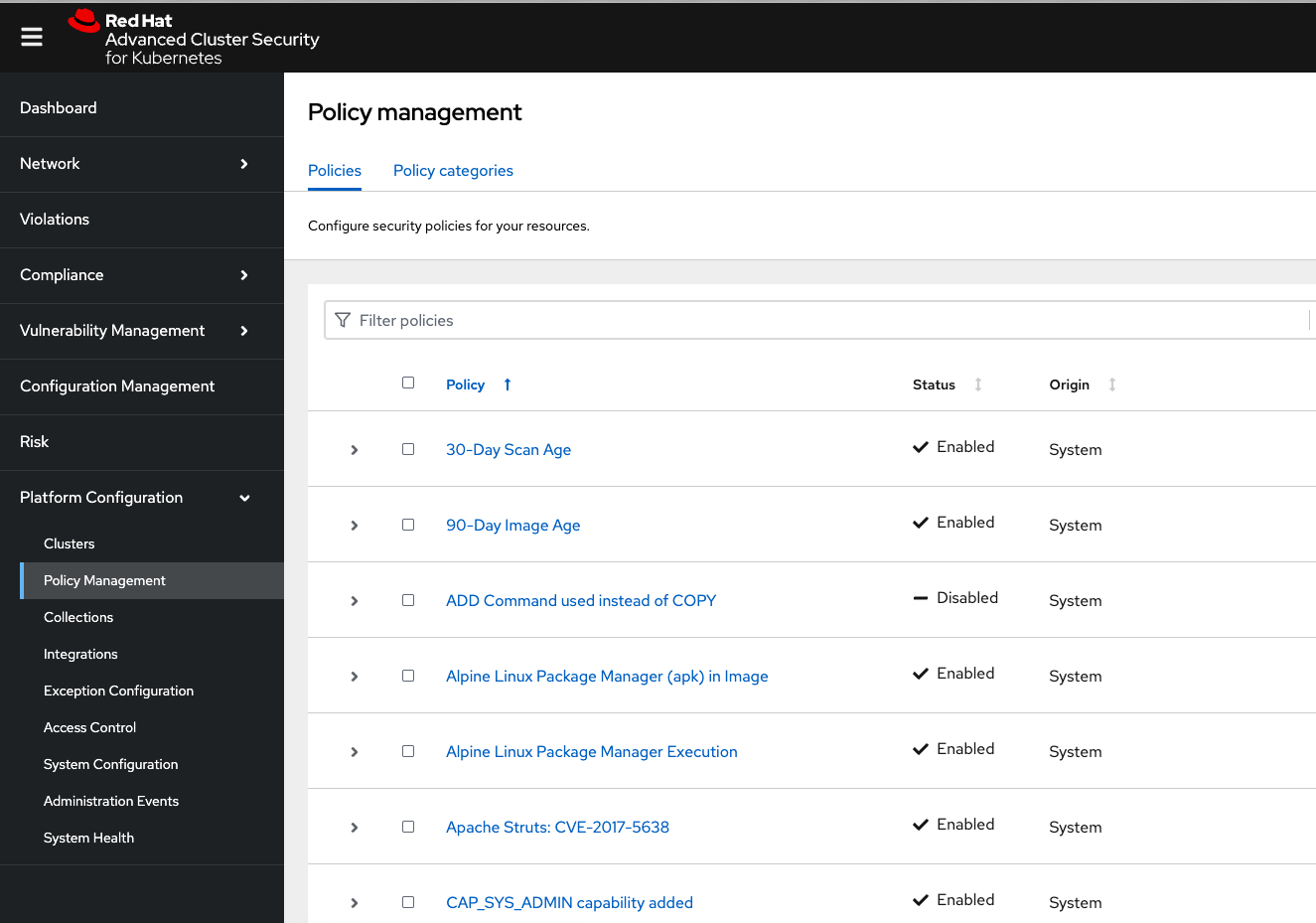
Procedure . On the left-hand side of the application, click the Platform Configuration tab and select Policy Management:
-
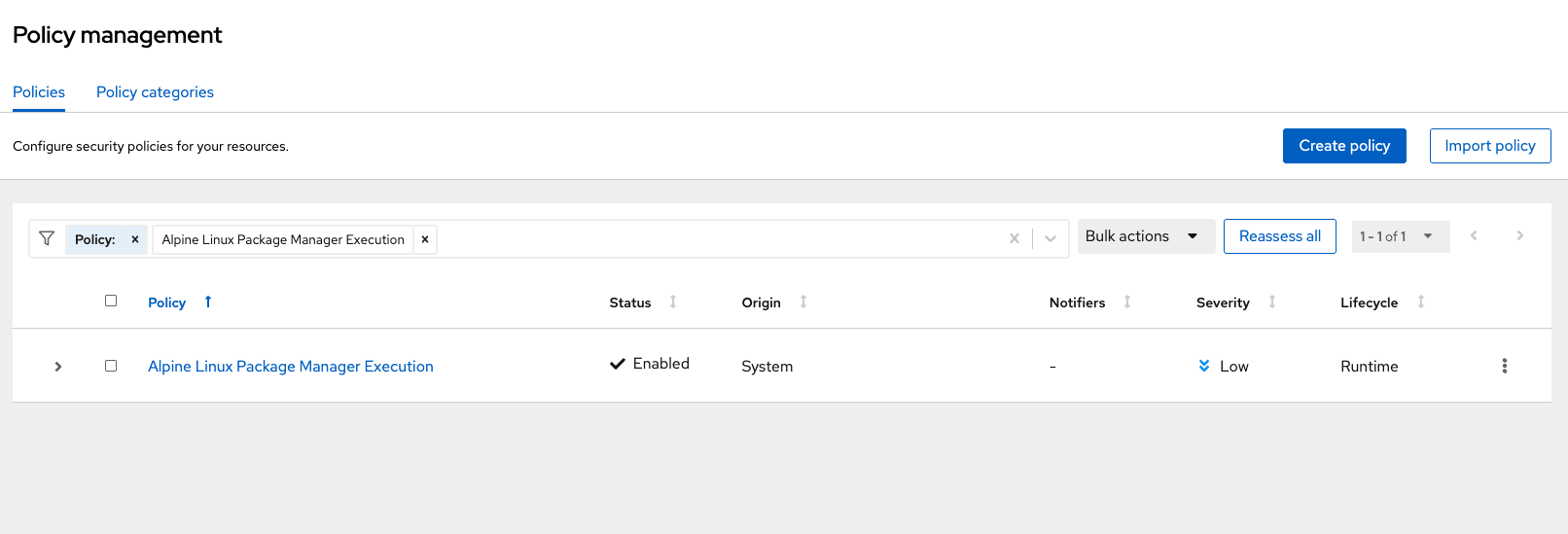
Filter through the policies to find Alpine Linux Package Manager Execution or use the search bar to select Policy:
-
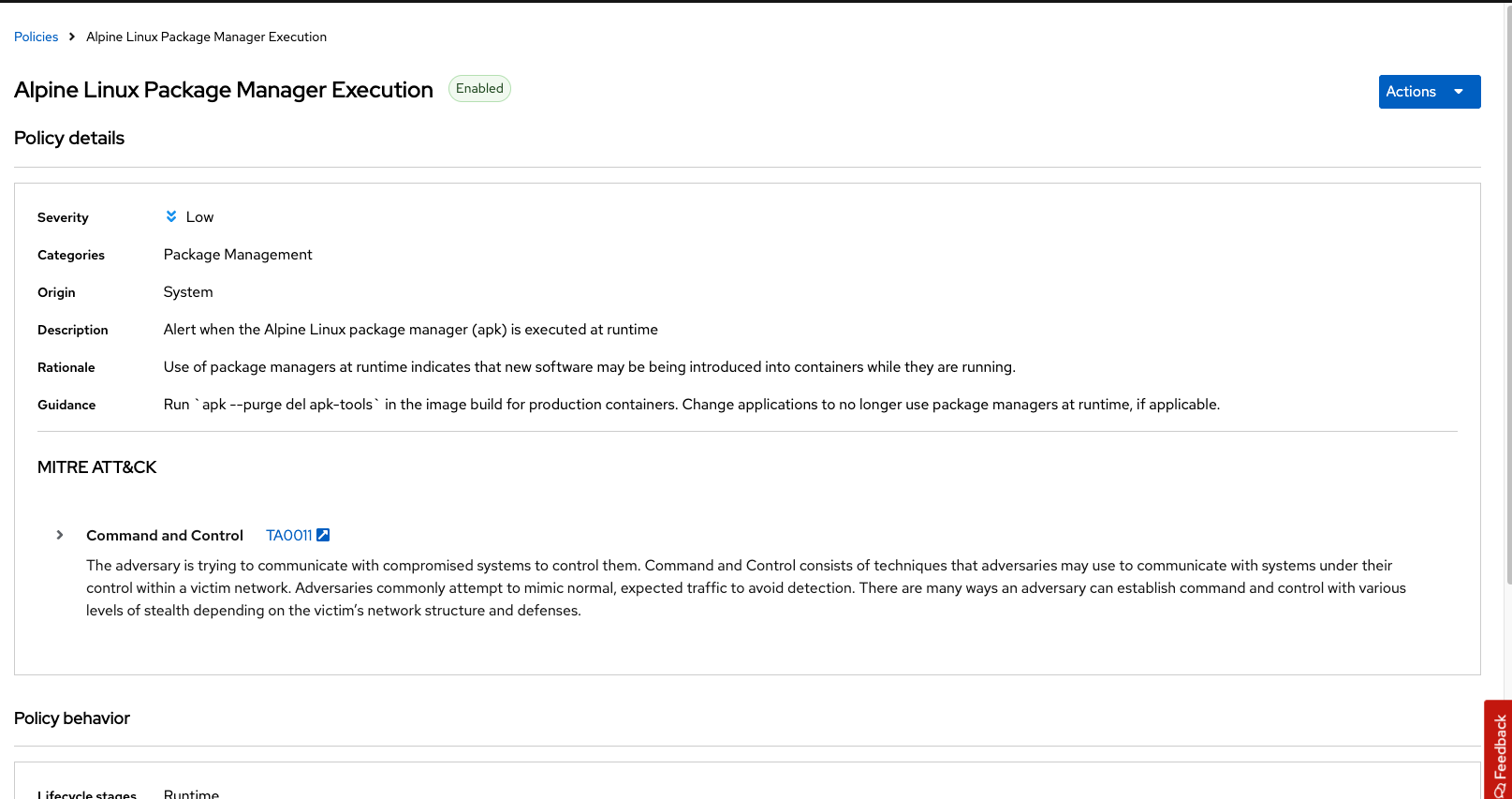
Once you have found the policy Alpine Linux Package Manager Execution, click on it to learn more:
3.1. Prevent Execution of Package Manager Binary
Package managers like apt (Ubuntu), apk (Alpine), and yum/dnf (RedHat) are used to manage and update software on Linux hosts, including virtual machines. However, using a package manager to install or remove software on a running container breaks the container’s immutable nature.
This policy shows how RHACS detects and prevents such violations by using Linux kernel instrumentation to identify the running process and OpenShift to terminate the pod for enforcement. Enforcing runtime policy through OpenShift is preferred over doing it directly in the container or container engine. This ensures consistency between the state OpenShift manages and the state of the container. Additionally, since runtime policies might only detect part of an attack, removing the container entirely helps stop the attack.
3.2. Enable Enforcement of Policy
Procedure
-
Click the Actions button, then click CLONE policy. Then give it the name "Alpine Linux Package Manager Execution - Runtime":
Alpine Linux Package Manager Execution - Runtime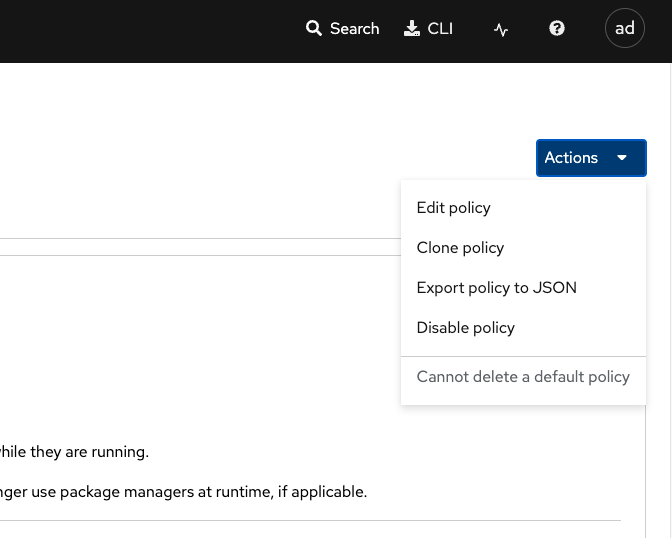
-
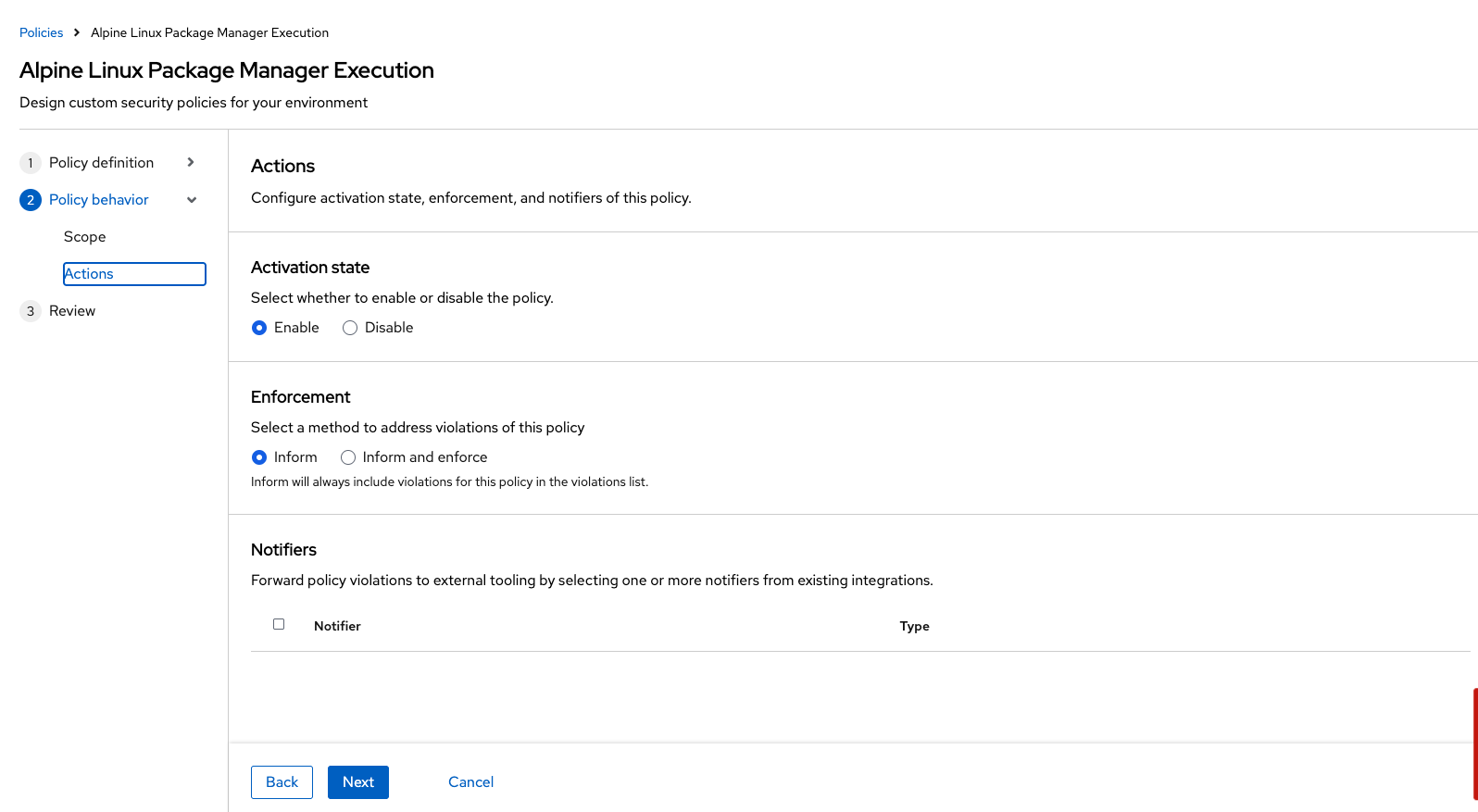
Select Policy Behavior → Actions:
-
Enable runtime enforcement by clicking the inform and enforce button:
-
Configure enforcement behavior by selecting Enforce at Runtime:
-
Click Next:
-
Review the changes, then click save:
| Make sure to save the policy changes! If you do not save the policy, the process will not be blocked! |
3.3. Testing the Configured Policy
Next, we will use tmux to watch OpenShift events while running the test so you can see how RHACS enforces the policy at runtime.
| Make sure that you are signed into the bastion host with OpenShift access when running the following commands. |
Procedure . In the terminal, start tmux with two panes:
tmux new-session \; split-window -v \; attach-
Next, run a watch on OpenShift events in the first shell pane:
oc get events -n patient-portal -w-
Press
Ctrl+bfirst, and then press o to switch to the next pane. (Hold ctrl+b, then press o): -
Exec into our Java application by getting the pod details and adding them to the following command:
POD=$(oc get pod -l app=frontend -n patient-portal -o jsonpath="{.items[0].metadata.name}")
oc exec $POD -n patient-portal -i --tty -- /bin/bash
If you see /home/fritz, you’ve confirmed shell access to the frontend container.
-
Run the apk package manager in this shell:
apk updateExpected: Package manager starts, then the shell terminates with exit code 137. In the events pane, RHACS Killing the pod and a replacement pod is Created.
| After a few seconds, the pod is deleted and recreated and your exec session ends. Type exit, press Ctrl+c to stop the watch, and exit tmux. |
4. Introduction to Deploy-Time Policy Enforcement
Deploy-time policy enforces configuration controls both before deployment in the CI/CD process and within the cluster itself. It can include build-time policies and cluster configurations, such as privileged mode or mounting the Docker socket.
There are two ways to enforce deploy-time policies in RHACS:
-
With listen and enforce options enabled, RHACS rejects deployments that violate the policy using the admission controller.
-
When the admission controller is disabled, RHACS scales pod replicas to zero for deployments that violate the policy.
Next, we’ll set up a Deploy-Time policy to block applications from deploying into the default namespace if the image contains the apt|dpkg application.
4.1. Prevent the Alpine Linux Package Manager in the Frontend Image from Being Deployed
Procedure
-
First, delete the deployment from the cluster. We will redeploy the application after creating the policy:
oc delete -f $APP_HOME/skupper-demo/frontend.yml-
Navigate to Platform Configuration → Policy Management:
-
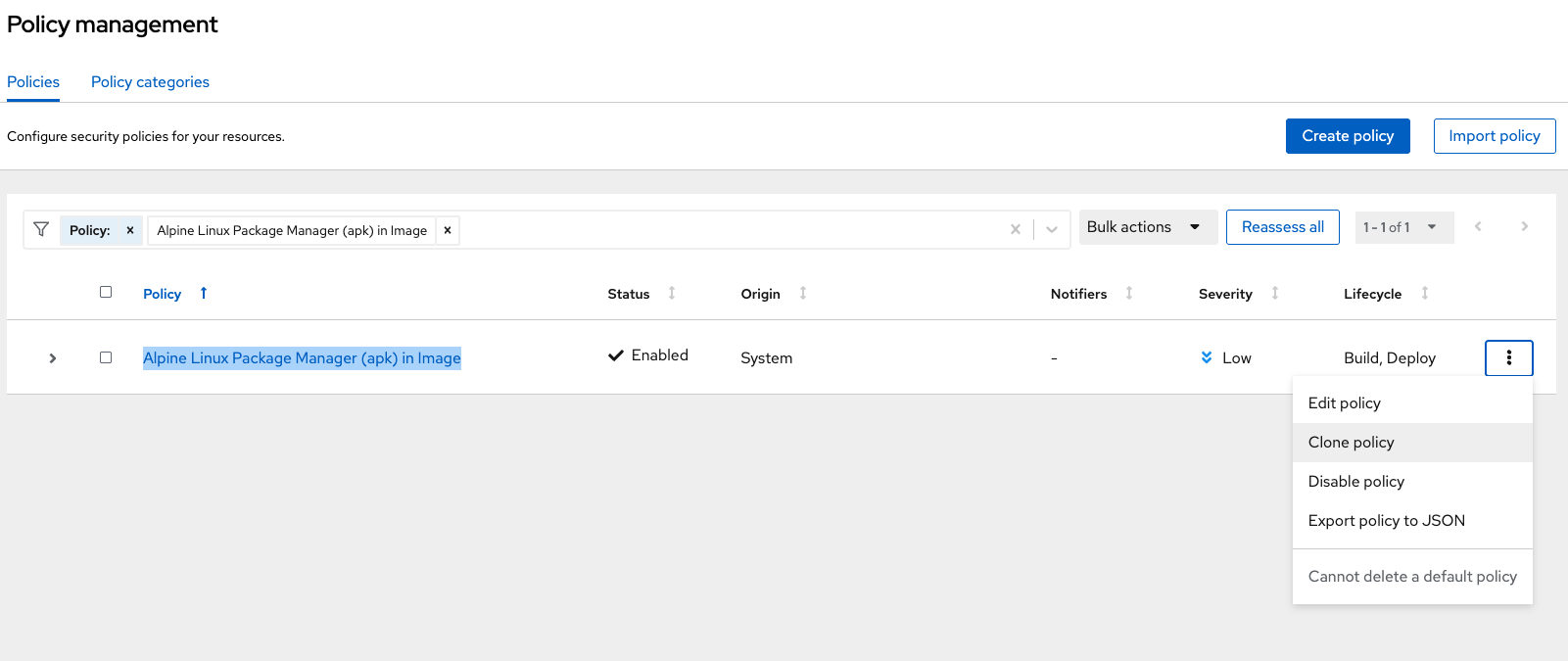
On the Policy Management page, type Policy then Alpine Linux Package Manager (apk) in Image into the filter bar at the top.
| This time you are going to edit a different policy for the Alpine Linux Package Manager (apk), specifically related to the Build & Deploy phases. |
-
Click on the Alpine Linux Package Manager (apk) in Image options (the three dots on the right side of the screen) and select Clone policy:
| Make sure to CLONE the policy. Cloning policies ensures the default policies aren’t altered. |
-
Give the policy a new name, such as
Alpine Linux Package Manager in Image - Enforce Deploy. The best practice would be to add a description for future policy enforcers as well:
Alpine Linux Package Manager in Image - Enforce Deploy-
Click Next
-
Next, deselect Build stage so that only the Deploy stage is selected:
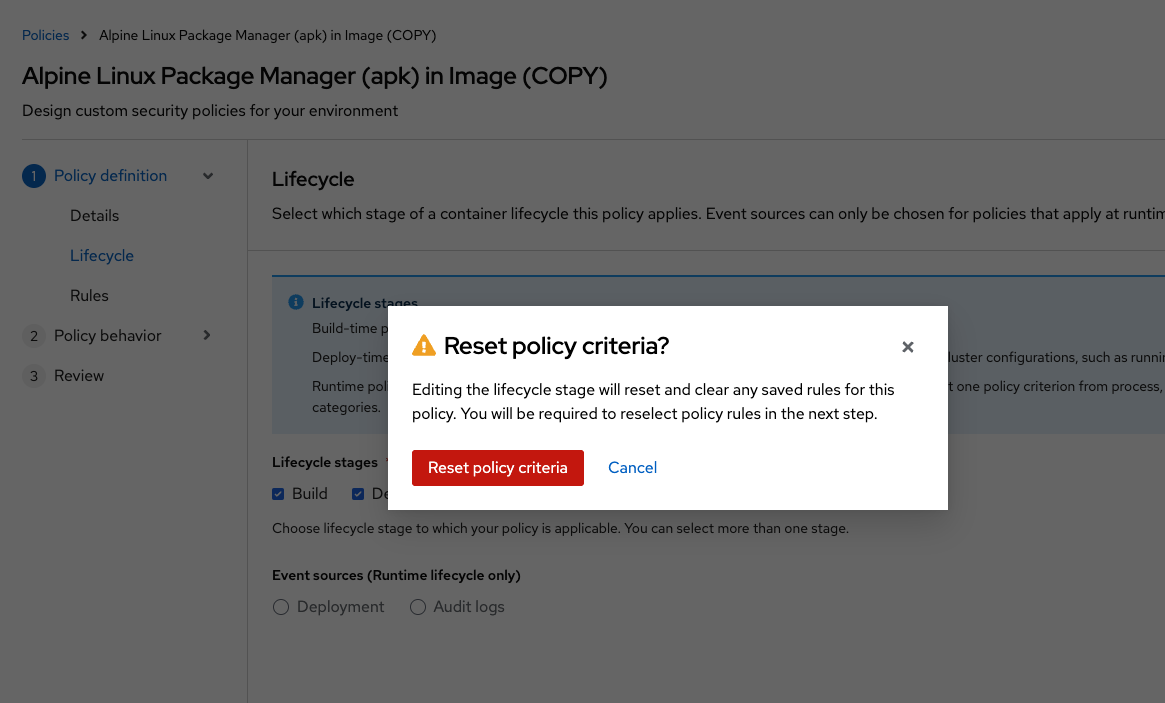
| Since certain policy criteria is specific to each stage, you have to reset the policy criteria. |
Now, we want to target our specific deployment with an image label.
-
Click Next:
-
Click on the Image contents dropdown on the right side of the browser:
-
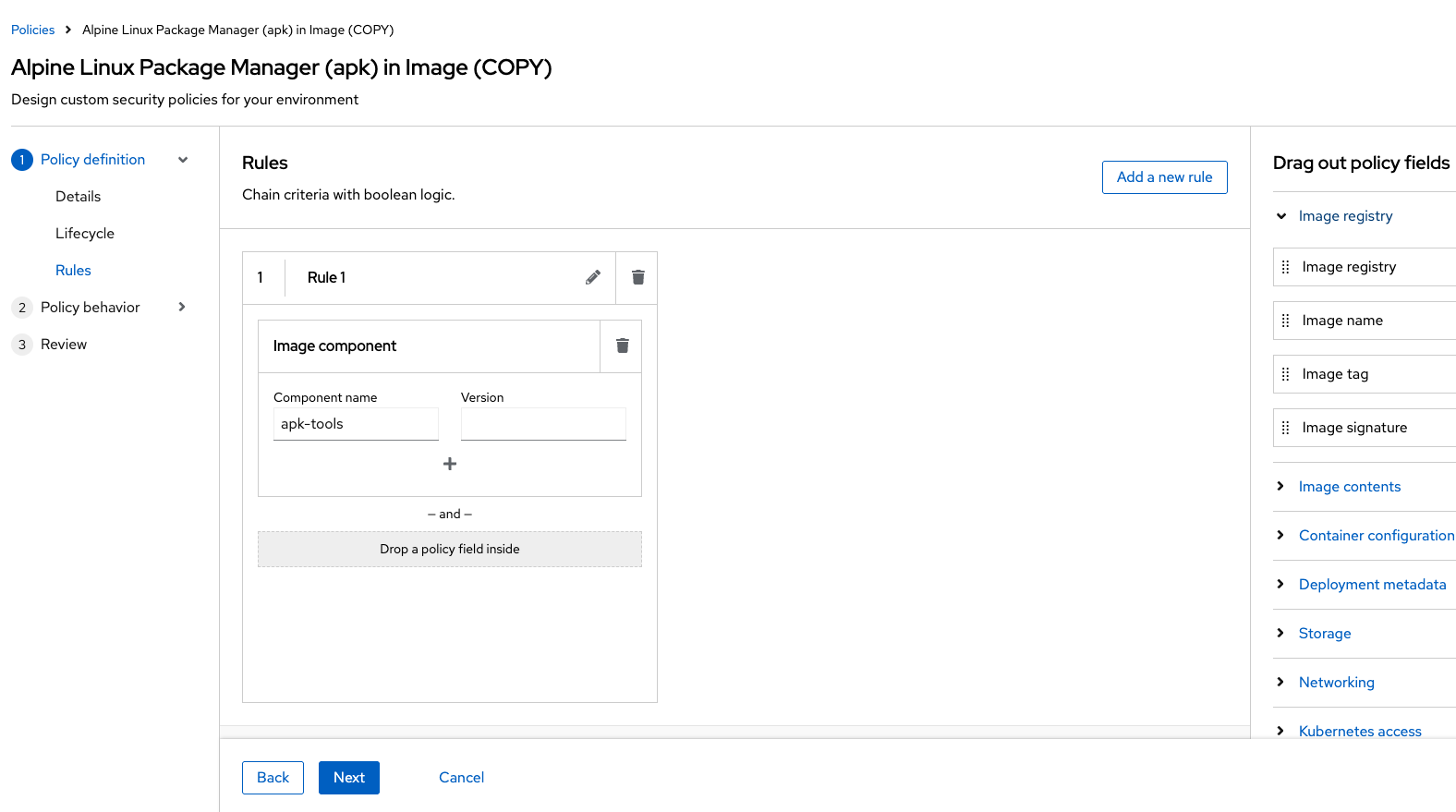
Find the Image component label and drag it to the default policy criteria:
-
Type apk-tools under the criteria:
Your policy should look like this:
-
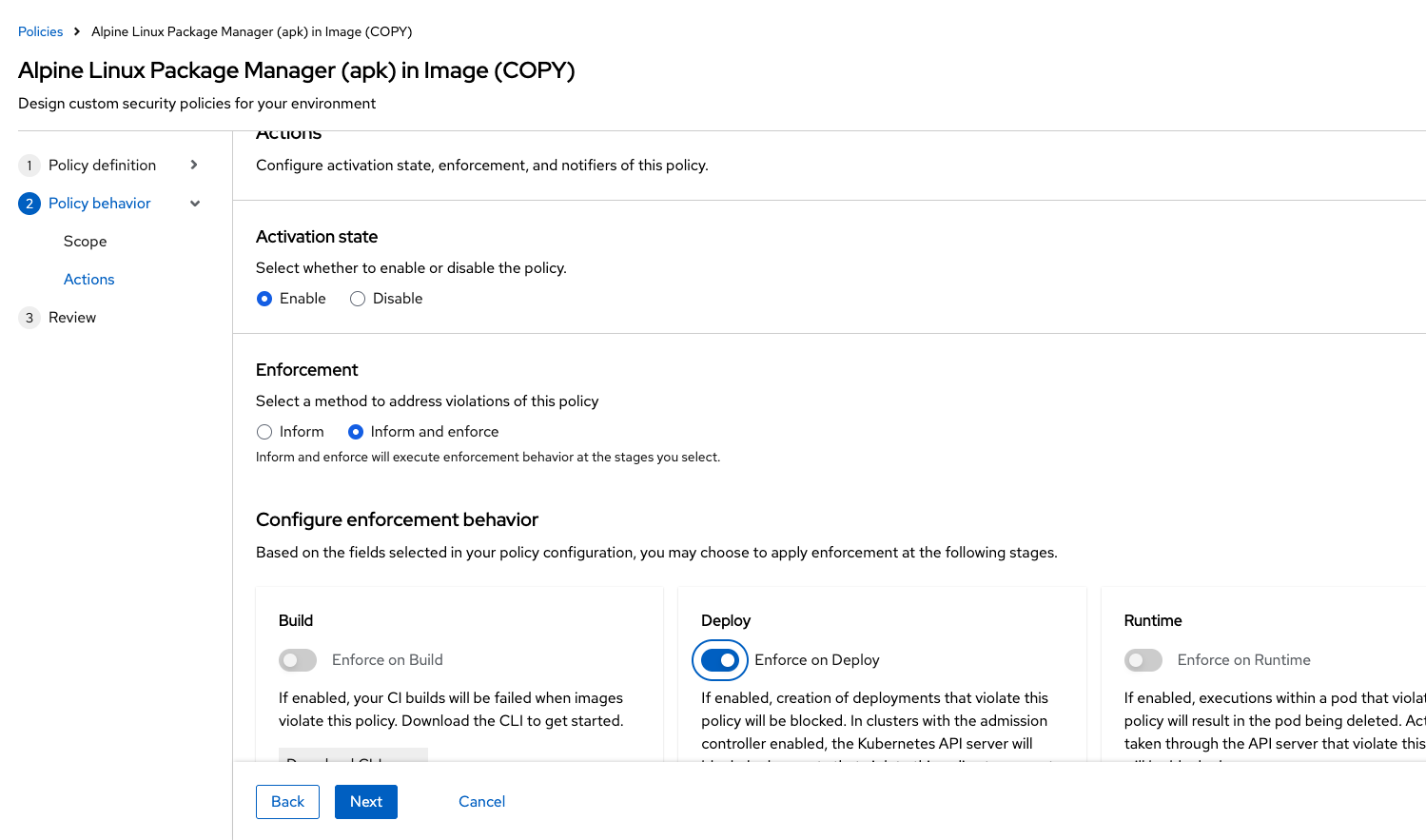
In Policy behavior → Actions, click Inform and enforce + Enforce on Deploy:
-
Click Next:
-
Review the changes:
-
Click Save:
Now, let’s test it out! We’re going to redeploy the frontend application from earlier.
In case you forgot to run the command earlier:
oc delete -f $APP_HOME/skupper-demo/frontend.ymlNow reapply the frontend service and deployment:
oc apply -f $APP_HOME/skupper-demo/frontend.ymlExpected: Admission webhook denies the deployment—policy Alpine Linux Package Manager in Image - Enforce Deploy violated because container frontend includes apk-tools.
-
Verify the frontend application against the policies you’ve created:
roxctl -e $ROX_CENTRAL_ADDRESS:443 deployment check --file $APP_HOME/skupper-demo/frontend.yml --insecure-skip-tls-verify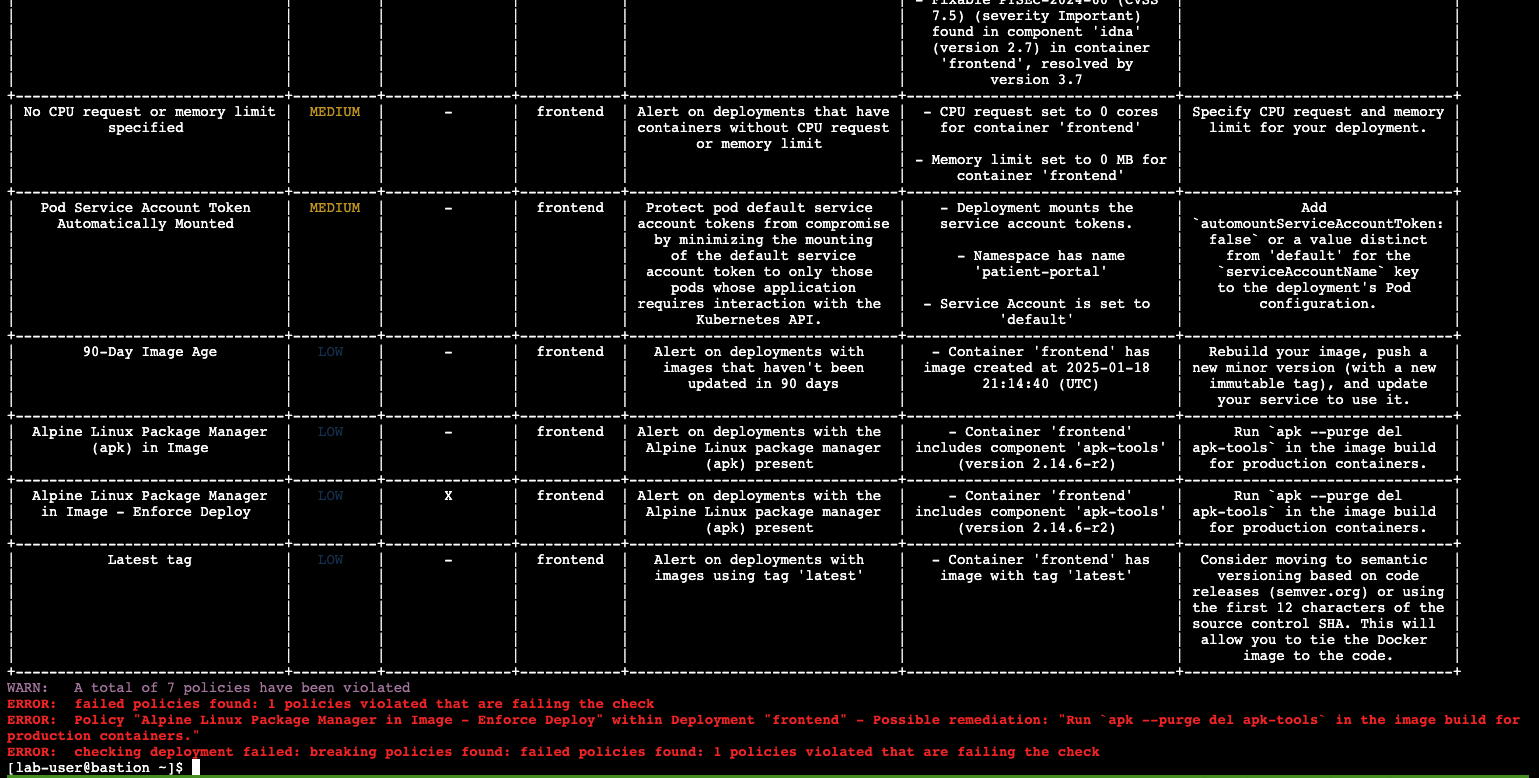
The new policy will fail the check when in enforce mode. In inform mode, you will get a policy violation without the "Failed policy" error.
Congrats!
You’re now enforcing against the Alpine Linux package manager at runtime and deploy time. Let’s finish with enforcing at build-time!
5. Introduction to Build-Time Policy Enforcement
Build-time policies define how images should be constructed—minimizing vulnerabilities, limiting package managers, and enforcing non-root users. In RHACS, they apply to image CVEs and Dockerfile instructions.
5.1. Prevent the Alpine Linux Package Manager in the Frontend Image from Being Pushed to Quay
-
Verify that the variables are correct to make this section smoother:
echo $QUAY_USER
echo $QUAY_URL
echo $ROX_CENTRAL_ADDRESS-
Make sure you are logged in to Quay:
podman login $QUAY_URL -u $QUAY_USER -p {quay_admin_password}| Use the Quay admin credentials, Username: {quay_admin_username} & password: {quay_admin_password}. You can create unique user and group credentials in Quay for proper segmentation. |
-
Let’s pretend as if the developers are pushing an update to the frontend application. First, pull and scan the related image:
The following command is designed to mimic and build a pipeline where a container build is going through a commit/promotion step. You download the image, scan for vulnerabilities, tag a newer version, and upload to Quay.
podman pull $QUAY_URL/$QUAY_USER/frontend:0.1
roxctl --insecure-skip-tls-verify -e "$ROX_CENTRAL_ADDRESS:443" image check --image=$QUAY_URL/$QUAY_USER/frontend:0.1
Expected: WARN: A total of 3 policies have been violated (inform-only policies).
With the Image Check CLI command, you can check against the created policies:
podman tag $QUAY_URL/$QUAY_USER/frontend:0.1 $QUAY_URL/$QUAY_USER/frontend:0.2
podman push $QUAY_URL/$QUAY_USER/frontend:0.2 --remove-signatures| Push succeeds because build enforcement is not yet enabled. |
Let’s clone the build policy and enforce it during the build phase.
Procedure
-
Navigate to Platform Configuration → Policy Management:
-
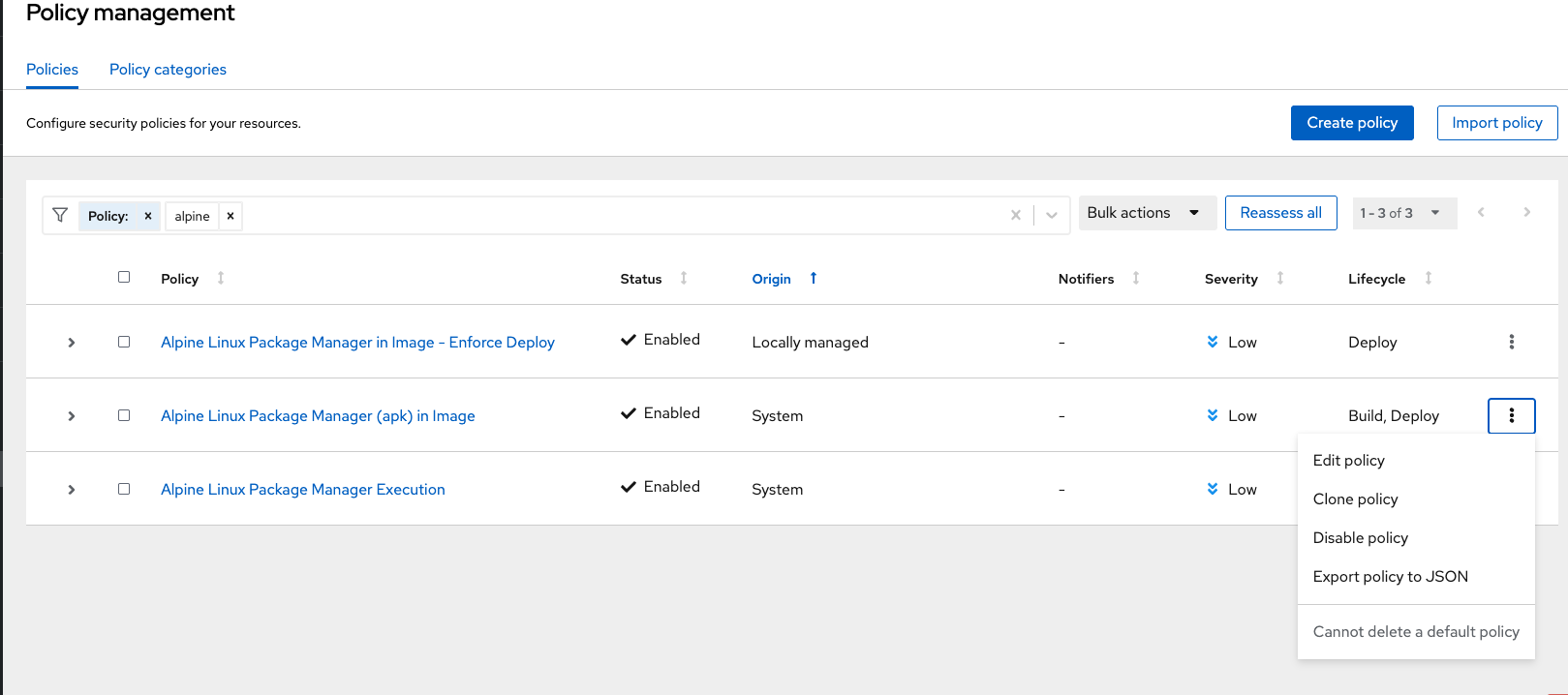
On the Policy Management page, type Policy, then Alpine Linux into the filter bar at the top:
-
Click on the Alpine Linux Package Manager in Image options (the three dots on the right side of the screen) and select Clone policy:
| Make sure to CLONE the policy: |
-
Give the policy the name
Alpine Linux Package Manager in Image - Enforce Build. The best practice would be to add a description for future policy enforcers as well:
Alpine Linux Package Manager in Image - Enforce Build-
Unselect the "Deploy" stage, and reset the policy criteria:
-
Click "Next"
-
Add the "image component - apk-tools" to the Rules:
-
Click "Next"
-
Remove all of the exclusion scopes. You can do this by clicking the garbage tags in the scope. Exclusion scopes are limited to the build and runtime stages:
-
Click "Next"
-
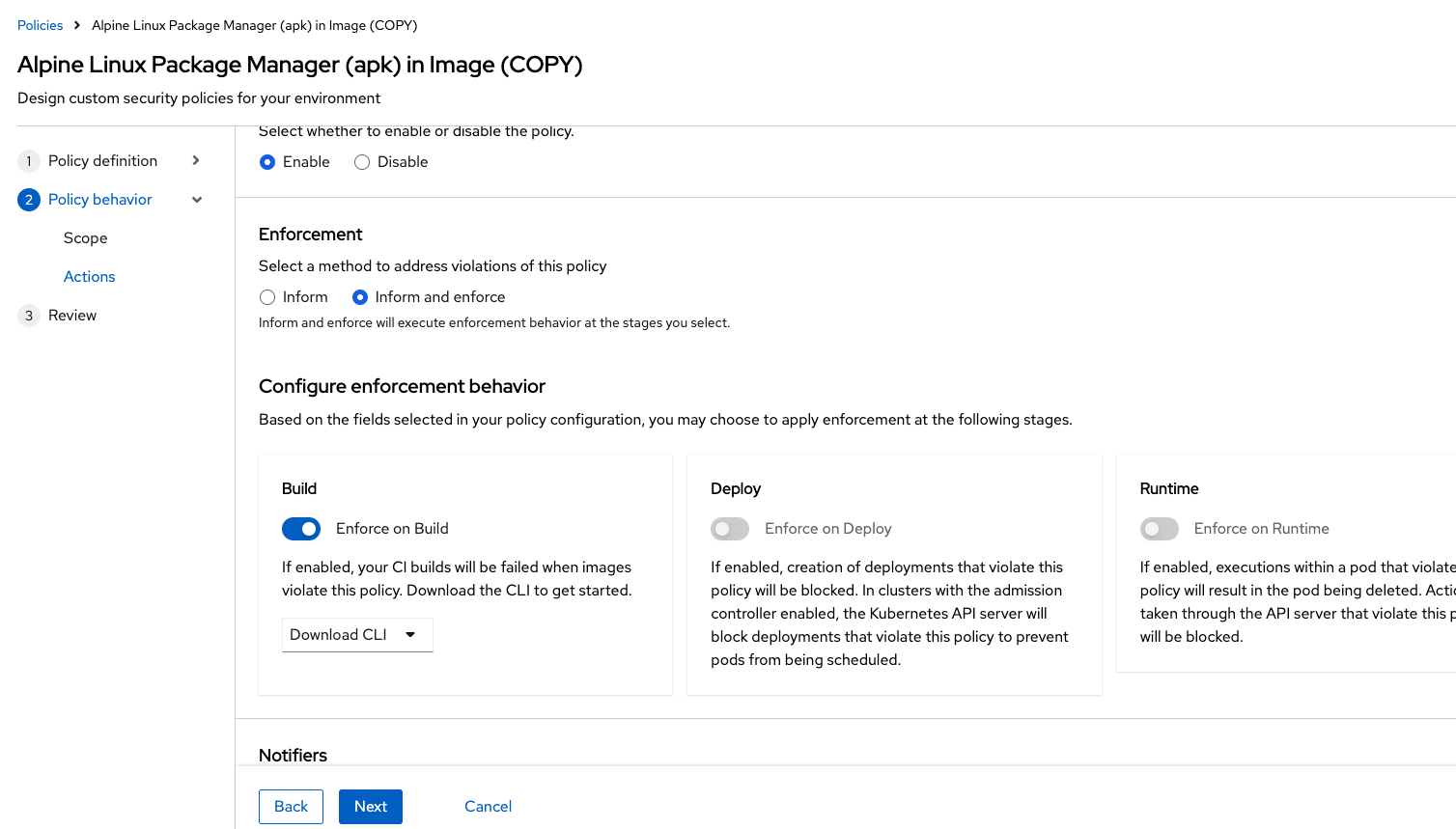
Update the policy to inform and enforce while ensuring the Build stage checkbox is selected, and select Enforce on Build at the bottom of the page:
-
Go to the Review Policy tab:
-
Review the changes:
-
Click Save:
Now let’s test it out!
Run the following in the terminal:
podman pull $QUAY_URL/$QUAY_USER/frontend:0.1
roxctl image check --insecure-skip-tls-verify -e "$ROX_CENTRAL_ADDRESS:443"  --image=$QUAY_URL/$QUAY_USER/frontend:0.1
Expected: ERROR: failed policies found: 1 policies violated for Alpine Linux Package Manager in Image - Enforce Build—this would fail a CI/CD pipeline step.
| You should see a failed policy check where inform-only checks previously only warned. |
6. Security Exercise: ACME Incident Response
With the payment gateway still running, Morgan wants runtime enforcement: lock the process baseline and prove RHACS detects shell execution.
You are participating in the ACME Financial Services security incident workshop. Sarah, a senior OpenShift Platform Engineer, and Morgan from Infosec are responding to a breach in the payment-gateway production namespace. An attacker used a compromised CI/CD service account to exec into the payment-gateway pod, deploy a hidden toolkit (/tmp/.hidden_toolkit/exfil.sh), and beacon outbound to a command-and-control server.
Each ACS module ends with a hands-on exercise that advances this incident response story using RHACS and OpenShift platform tools.
6.1. Scenario
If we’d had a locked baseline during the incident, the SOC would have been alerted the moment the attacker ran their shell.
Infosec
6.2. Your task
The steps are there for guidance. If you need help, expand the step and compare your approach to the lab commands.
Step 1 — Open Process Discovery for payment-gateway
Use your assigned workshop namespace suffix 1.
|
-
Payment gateway (breached workload):
payment-gateway-1 -
Vulnerable Socket.IO demo:
vulnerable-workload-1
Switch to your payment gateway namespace before running commands:
oc project payment-gateway-1If your administrator has not yet provisioned the environment, ask them to run ./setup/deploy-incident-env.sh from the roadshow repository (see setup/README.adoc).
-
In RHACS Risk, open
payment-gatewayin namespacepayment-gateway-1. -
Go to Process Discovery.
Step 2 — Lock the process baseline
-
Remove
/bin/bashor shell processes from the baseline if present (click X next to the entry). -
Click the Lock icon to lock the baseline.
Step 3 — Simulate attacker shell execution
Simulate the attacker executing a shell:
oc exec -n payment-gateway-1 -it pod/payment-gateway -- /bin/bash -c "whoami && hostname && echo 'Arbitrary process execution successful'"Step 4 — Find the violation in RHACS
-
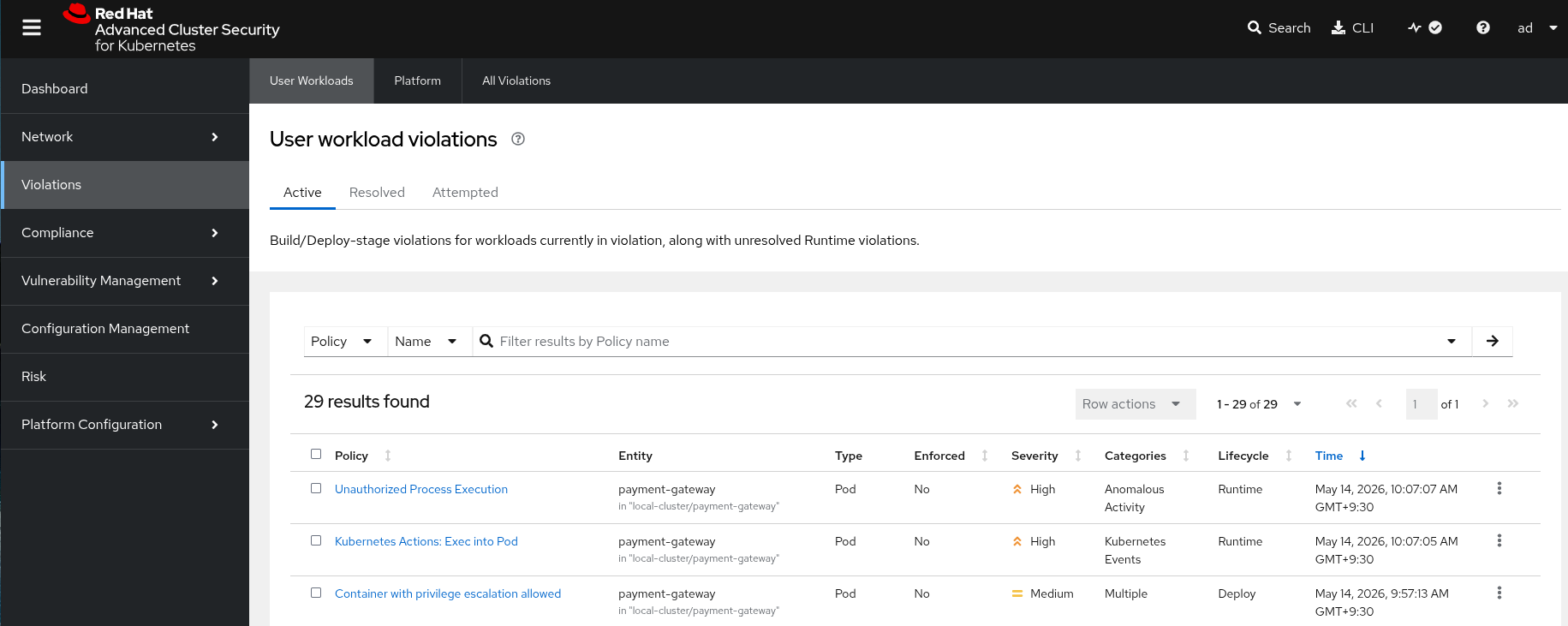
Return to RHACS Violations and find Unauthorized Process Execution for
payment-gateway.
6.3. What you learned
-
Locked process baselines turn observed behavior into an enforceable runtime control.
-
RHACS detects shell execution even when the command itself succeeds (detect, not block by default).
-
Policy management extends from build/deploy policies to runtime process baselines during incident response.
