Notifications, API, and Integrations
1. Module Goals
-
Understand how notification and alerting work in RHACS
-
Set up a Slack notifier (Teams uses the same Integrations pattern)
-
Attach a notifier to a policy
-
Call the RHACS API with a token for policies and alerts
2. How notifications and alerts work in RHACS
RHACS generates a violation when a policy is broken. You route those events through Platform Configuration → Integrations (notifiers, registries, API tokens, backups). Severity on the policy (Low through Critical) decides who should wake up.
Supported notifiers include Slack, Microsoft Teams, email, PagerDuty, Splunk, and generic webhooks.
3. Integrating Slack with RHACS
Hands-on for this lab is Slack. Microsoft Teams follows the same pattern: create a webhook in the chat product, then add a Notifier integration in RHACS and Test it.
3.2. Steps for setting up the Slack integration
Procedure
-
Visit the Slack API site: https://api.slack.com/apps?new_app=1 and log in with your Slack credentials.
-
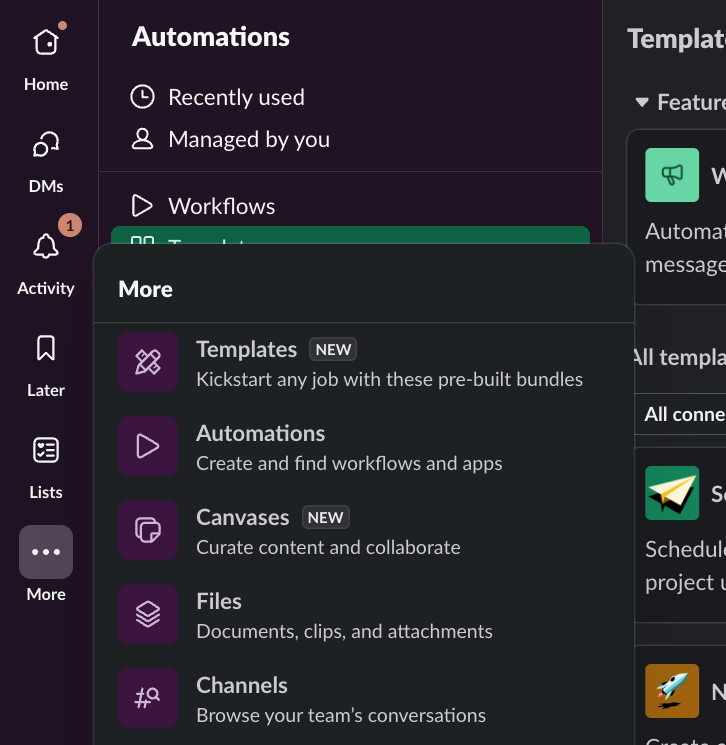
Click MORE, then click Automations:
-
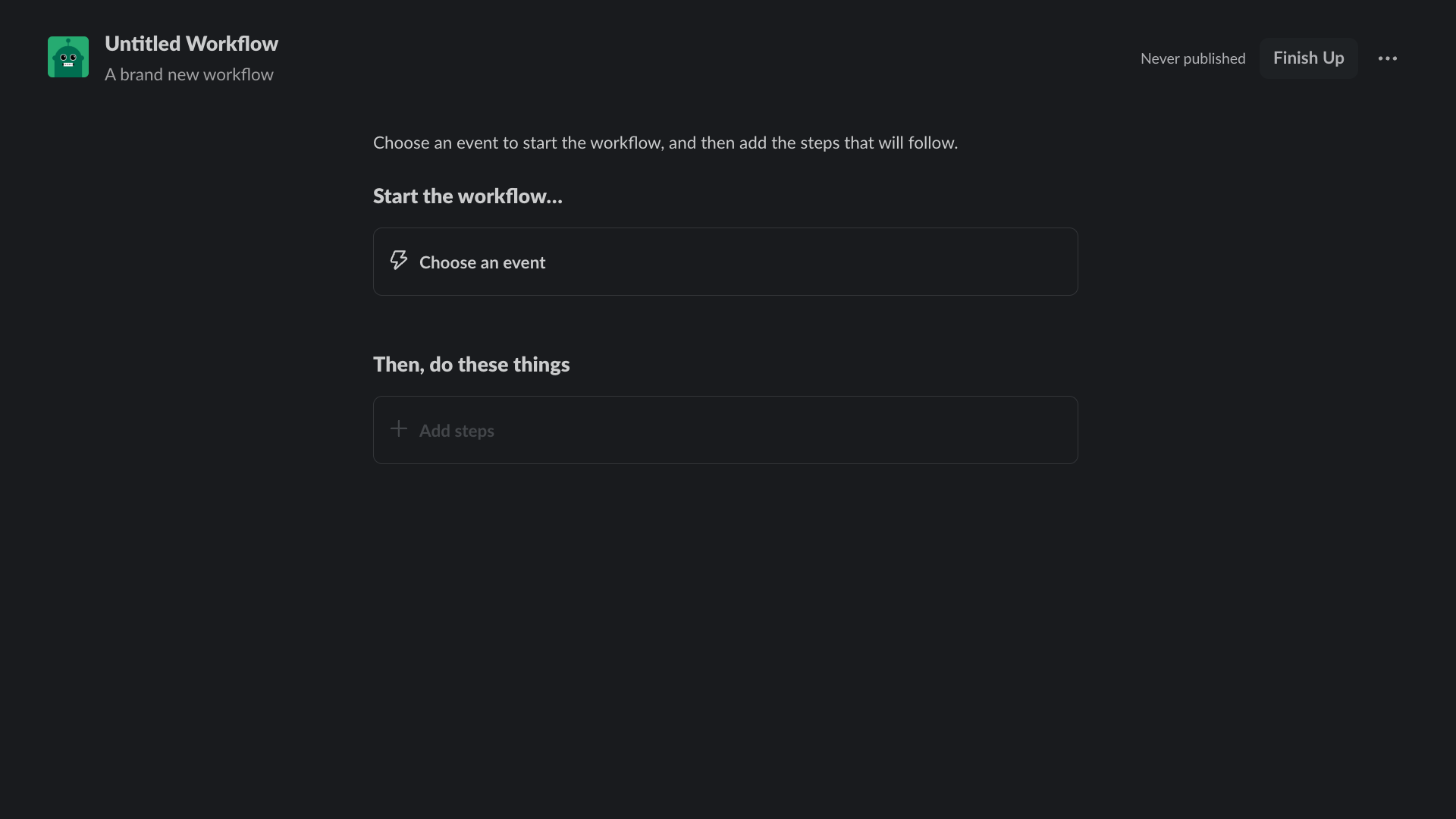
Select New Workflow at the top right of the page:
-
Select New Workflow at the top right of the page.
-
Click the workflow title and give it the following name: first-notification-workflow.
-
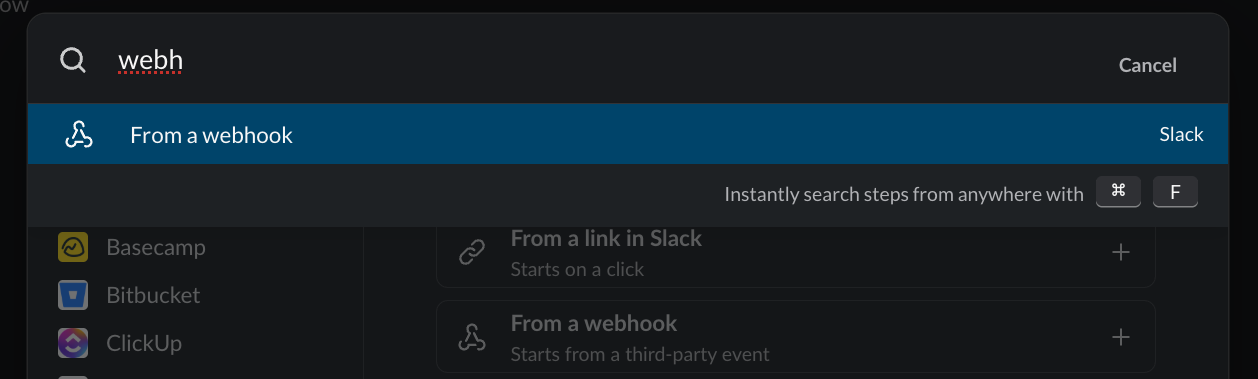
Search for webhook and select it:
-
Hit continue.
-
Select the Slack workspace where it will be used:
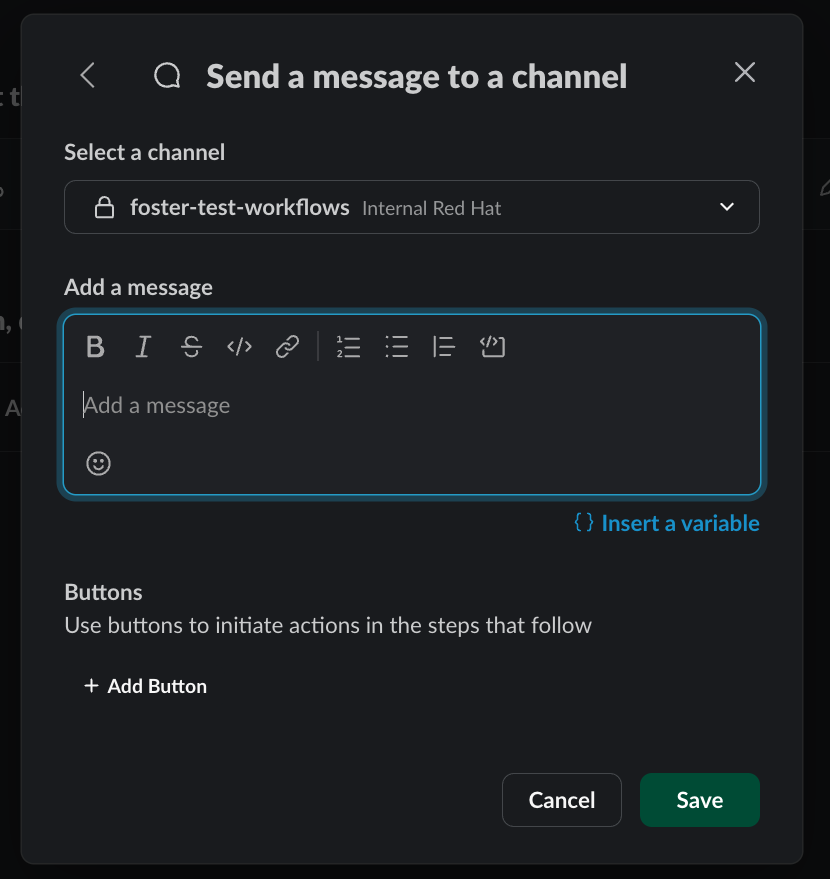
| You can add additional features like webhooks or bot users later, but for now, focus on setting up the Incoming Webhooks. |
-
Add a test prompt and save it.
-
Then click Finish Up:
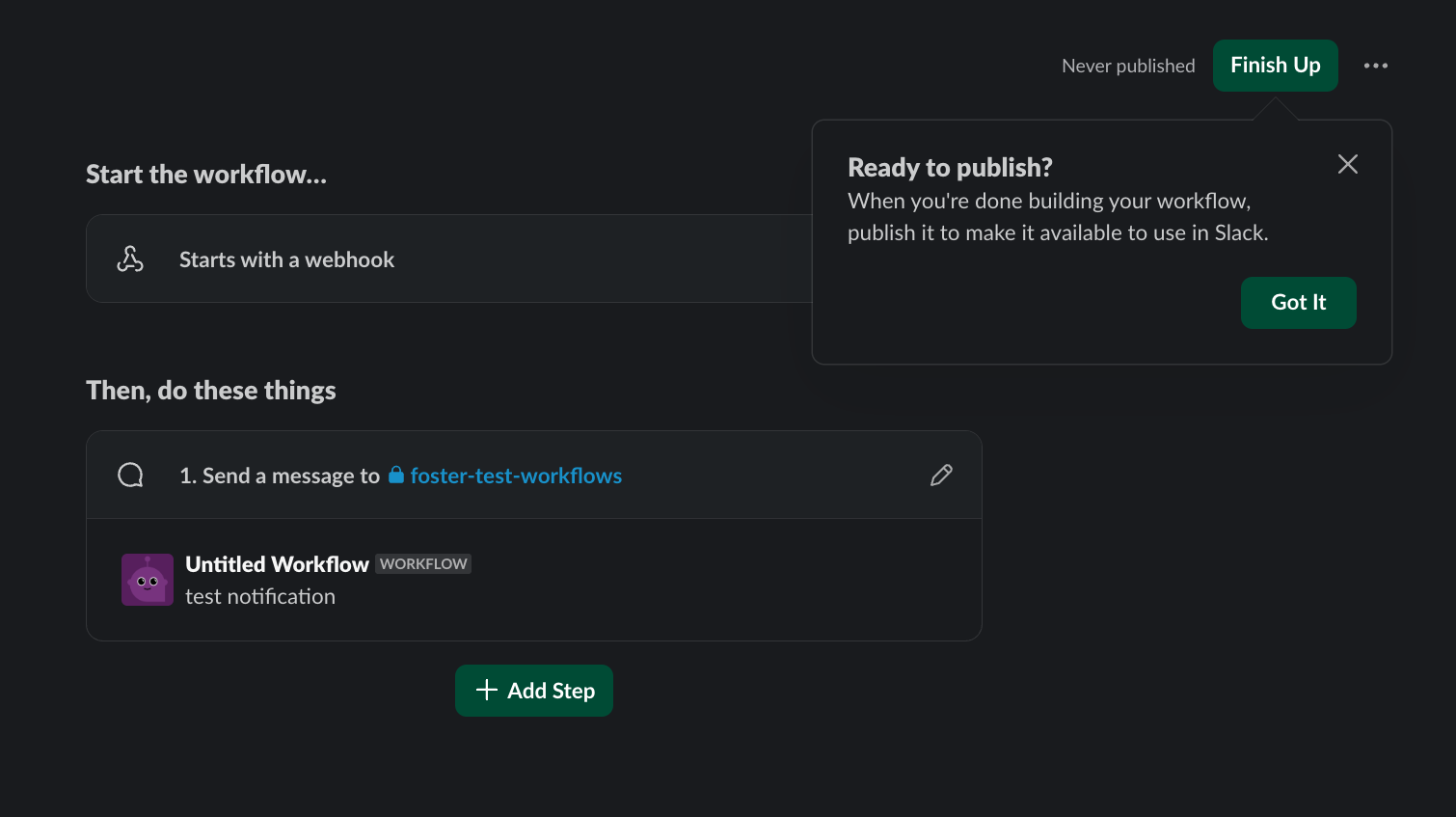
-
Scroll down to the Webhook URLs for Your Workspace section:
-
Next, copy the unique Webhook URL and navigate to the RHACS dashboard:
-
Log into the RHACS Console and navigate to Platform Configurations → Integrations:
-
Under Notifier Integrations, select Slack:
-
Click the New integration button to start the configuration:
-
Integration Name: Enter: slack-alerts
-
Webhook URL: Paste the Webhook URL you copied earlier from Slack.
-
Default Channel: This is typically auto-populated based on the Webhook URL, but verify or select the correct Slack channel.
-
-
Click Test to ensure the integration works correctly:
-
If successful, you will see the message "The test was successful".
For Microsoft Teams, use Notifier Integrations → Microsoft Teams with an incoming webhook from the channel Workflows UI. Name the integration teams-alerts and Test it the same way.
|
4. Configure notifications
Attach the notifier to a policy you already have. This lab reuses No bash allowed from 02 Policy and Risk.
Procedure
-
On the left-hand side of the application, click the Platform Configuration tab and select Policy Management:
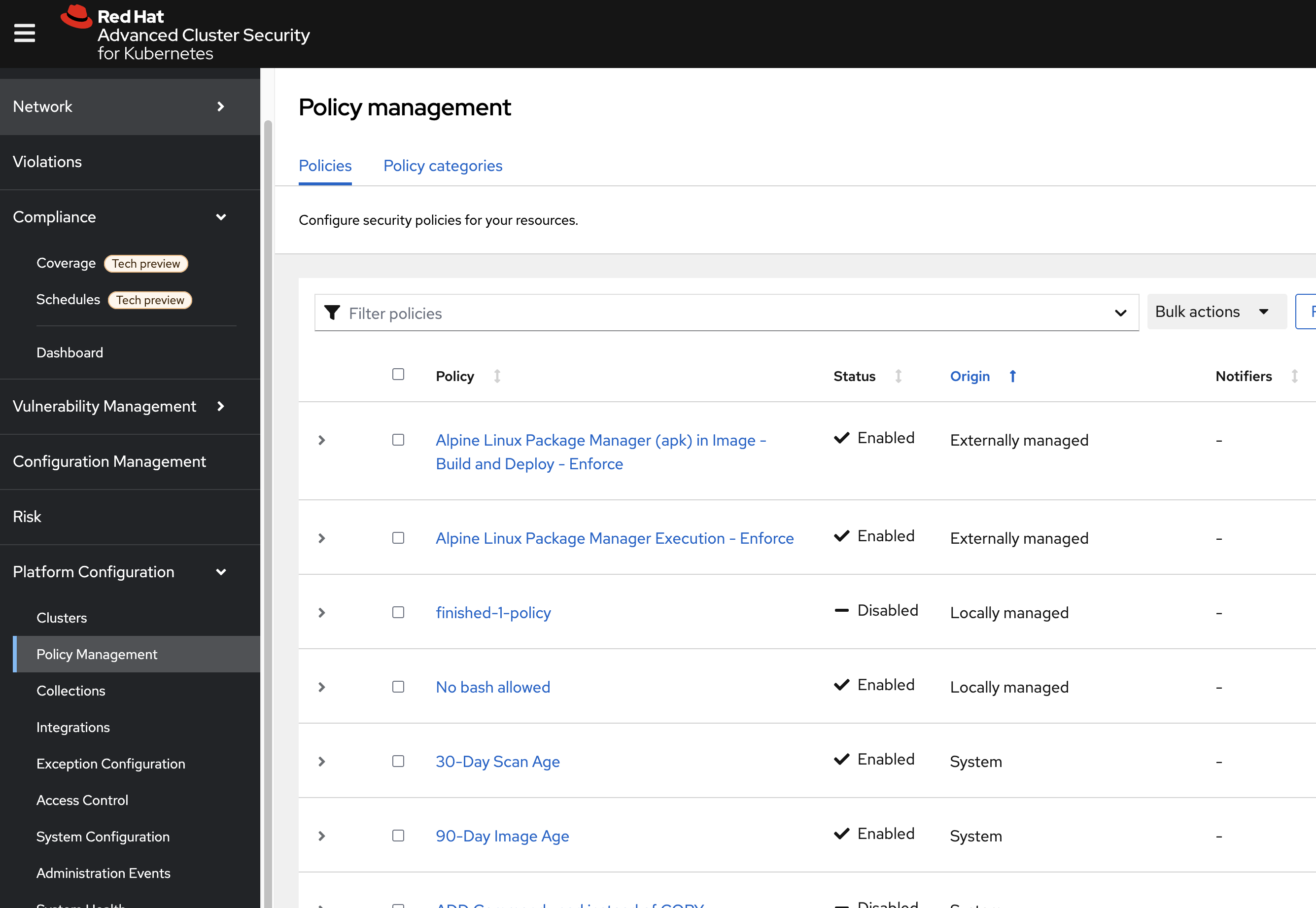
-
Filter through the policies to find No bash allowed or use the search bar to select Policy:
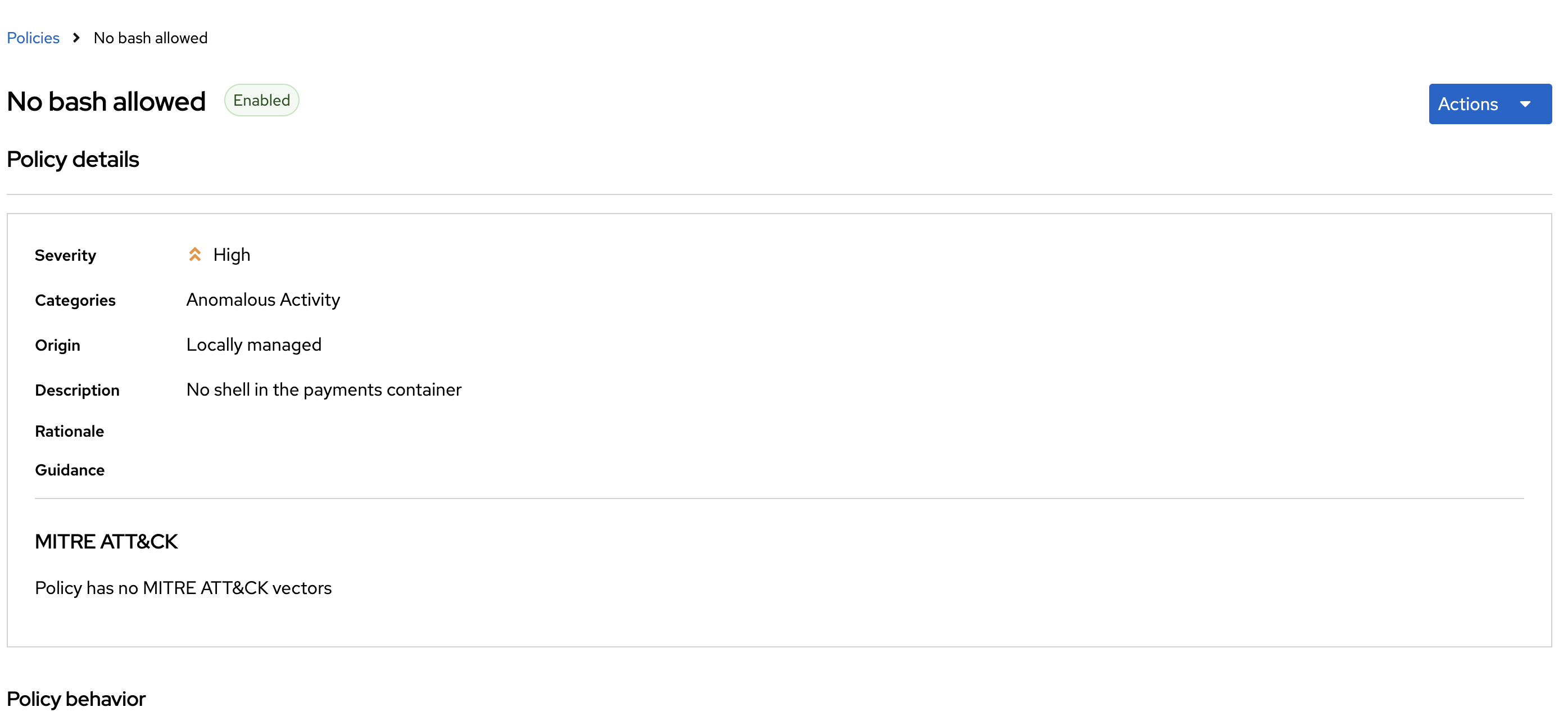
-
Once you have found the policy No bash allowed, click to edit the policy:
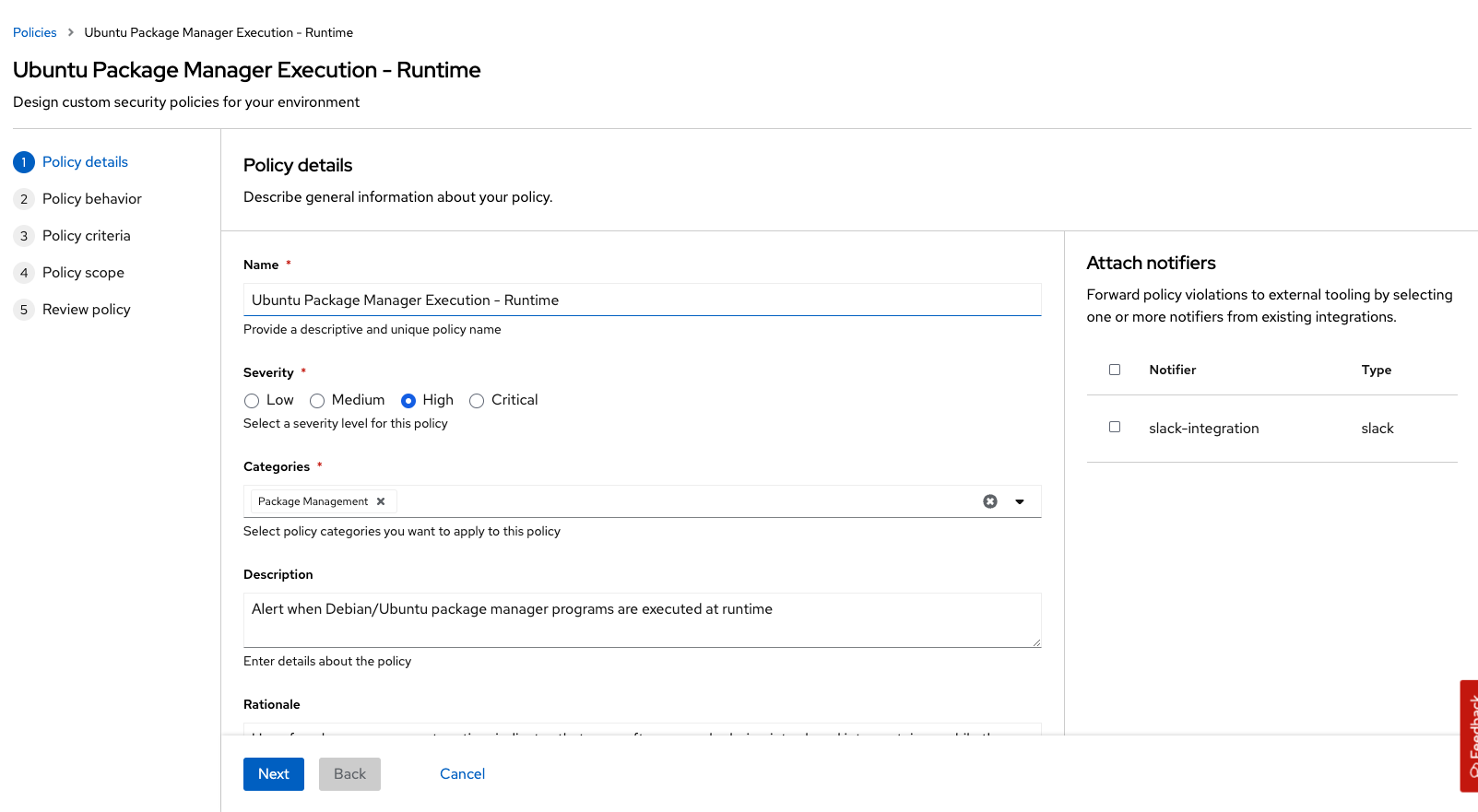
-
Go to Policy behavior - actions. There should be your slack-alerts (and teams-alerts, if you added Teams) notifier options available:
-
Click the desired notifier(s) and save the policy:
| Run the following command if you have not created the policy in 02: |
cat <<EOF | oc apply -n stackrox -f -
apiVersion: config.stackrox.io/v1alpha1
kind: SecurityPolicy
metadata:
  name: no-bash-allowed
  labels:
    app.kubernetes.io/name: anomalous-activity-policy
    app.kubernetes.io/part-of: security-policies
spec:
  policyName: No bash allowed
  description: 'Privilege escalation technique'
  rationale: ''
  remediation: Uninstall during container build
  disabled: false
  categories:
    - Anomalous Activity
  lifecycleStages:
    - RUNTIME
  eventSource: DEPLOYMENT_EVENT
  exclusions: []
  scope:
    - cluster: ''
      namespace: payments
      label: null
  severity: HIGH_SEVERITY
  enforcementActions: []
  SORTName: ''
  SORTLifecycleStage: ''
  SORTEnforcement: false
  policyVersion: '1.1'
  policySections:
    - sectionName: ''
      policyGroups:
        - fieldName: Process Name
          booleanOperator: OR
          negate: false
          values:
            - value: bash
  mitreAttackVectors: []
  criteriaLocked: false
  mitreVectorsLocked: false
  isDefault: false
EOF-
Run the following command in the terminal:
POD=$(oc get pod -n payments -l app=visa-processor -o jsonpath="{.items[0].metadata.name}")
oc exec $POD -n payments -i --tty -- /bin/bash
[demo-user@bastion ~]$ POD=$(oc get pod -l app=ctf-web-to-system -o jsonpath="{.items[0].metadata.name}")
oc exec $POD -i --tty -- /bin/bash
tomcat@visa-processor-9bfcf46f7-cwtjb:/usr/local/tomcat$| If you see tomcat@visa-processor…, you’ve confirmed you have a shell and access to the visa-processor application. |
-
Lastly, review your Slack (and/or Teams) channel for the alert.
5. RHACS API
The setup script already exported ROX_API_TOKEN and ROX_CENTRAL_ADDRESS. You can also mint a token in Platform Configuration → Integrations → API Token (Admin role for this lab).
oc -n stackrox get route central -o jsonpath='{.spec.host}{"\n"}'
echo "ROX_CENTRAL_ADDRESS=$ROX_CENTRAL_ADDRESS"
test -n "$ROX_API_TOKEN" && echo "ROX_API_TOKEN is set" || echo "ROX_API_TOKEN is missing"
Use Authorization: Bearer $ROX_API_TOKEN over HTTPS. Rotate tokens, grant least privilege in production, and revoke when a user leaves.
5.1. List policies
curl -k -H "Authorization: Bearer $ROX_API_TOKEN" "https://$ROX_CENTRAL_ADDRESS/v1/policies" | jq '.policies[] | {id,name,severity,disabled}' | head -405.2. List alerts, then filter
curl -k -H "Authorization: Bearer $ROX_API_TOKEN" "https://$ROX_CENTRAL_ADDRESS:443/v1/alerts" | jq -r '.alerts[] | select(.state=="ACTIVE") | .id' | headcurl -k -H "Authorization: Bearer $ROX_API_TOKEN" "https://$ROX_CENTRAL_ADDRESS:443/v1/alerts?query=Namespace:payments" | jqAPI docs live in the RHACS console (Help → API reference). Come up with one automation you would actually run—bulk lock, export, or ticket create—and we can discuss after the module.
6. Security Exercise: ACME Incident Response
If process baselines had been locked and wired to notifications, the SOC would have been paged when the attacker ran /bin/bash during the payment gateway breach.
You are participating in the ACME Financial Services security incident workshop. Sarah, a senior OpenShift Platform Engineer, and Morgan from Infosec are responding to a breach in the payment-gateway production namespace. An attacker used a compromised CI/CD service account to exec into the payment-gateway pod, deploy a hidden toolkit (/tmp/.hidden_toolkit/exfil.sh), and beacon outbound to a command-and-control server.
Each ACS module ends with a hands-on exercise that advances this incident response story using RHACS and OpenShift platform tools.
6.1. Scenario
We need alerts on Unauthorized Process Execution for payment gateway—same pattern we use for visa-processor in this module.
Infosec
6.2. Your task
The steps are there for guidance. If you need help, expand the step and compare your approach to the lab commands.
Step 1 — Configure a notifier integration
-
In RHACS, go to Platform Configuration → Integrations.
-
Create or reuse a notifier (Slack, Teams, or email) following the steps earlier in this module.
Step 2 — Create a notification rule
-
Create a notification rule targeting:
-
Violation type: Unauthorized Process Execution
-
Severity: High or above
-
Scope: namespace
payment-gateway-1
-
Step 3 — Trigger a test violation
-
Trigger a test by running shell exec:
oc exec -n payment-gateway-1 -it pod/payment-gateway -- /bin/bash -c "echo notification test"Step 4 — Confirm the alert fired
-
Confirm the violation appears in RHACS Violations and that your notifier fires.
7. Summary
You wired a notifier, attached it to a policy, and called the Central API. Next: Network and Runtime Security.
